
How Annual Holiday Leave Accrues in New Zealand
Annual holiday leave in New Zealand accrues differently than in other regions. This article outlines how the system calculates, displays, and manages annual holiday leave, including what is shown on pay slips, portals, and leave requests.
For further information on legislation and Annual Leave please visit your government website - Leave and holidays | Employment New Zealand
Visibility of Accrued Annual Holiday Leave
Accrued annual holiday leave can be viewed in the following locations:
- Pay slips
- Employee portal
- Manager portal
It cannot currently be viewed in:
- Roubler App
- The Leave and Availability of an employee’s file
To enable visibility, the following settings must be configured:
| Setting | Location | Required Configuration |
|---|---|---|
| Show leave accruals | Management > Payroll > Payroll Settings > Pay Slips | ✅ Ticked |
| Leave entitlement to start after | Management > Payroll > Payroll Settings > Leave Types | ✅ Ticked |
| Hide Accruals from payslips | Management > Payroll > Payroll Settings > Leave Types | ❌ Unticked |
| Standard Allowance | Management > Payroll > Payroll Settings > Leave Types | Must be set to Standard weeks or days per year (see below example) |
Please see the default setup for Annual Leave which we do recommend keeping in place for compliance.
How Annual Holiday Leave Accrual is Calculated
Leave accrues from the employee's last anniversary date to the end of each pay period.
Formula:
(Standard allowance ÷ 365) × Days since last anniversary (+1 day)
Example:
- Anniversary date: 30 Jan 2022
- Pay period end date: 5 May 2022 (96 days since anniversary)
- Standard allowance: 4 weeks
→ 4 / 365 × 96 = 1.05 weeks accrued
You can find an employee's last anniversary date under Employee file > Leave allowances.

Understanding the Accrued / Taken / Balance Columns
In a Pay Run
When viewing an employee in a pay run:
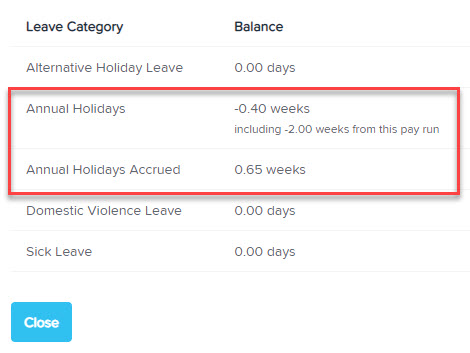
- Annual holidays balance: Shows entitled leave. Can be negative if leave has been taken in advance.
- Annual holidays accrued: Shows total accrued leave, minus any advance leave taken.
For example:
- 1.05 weeks accrued
- 0.40 weeks taken in advance
→ Remaining balance = 0.65 weeks

On Pay Slips
Pay slips show two lines under Leave Details:
| Leave Type | Accrued | Taken | Balance |
|---|---|---|---|
| Annual Holidays | N/A | Total taken from entitlement | Remaining entitlement (if any) |
| Annual Holidays Accrued | Calculated accrual (e.g. 1.05 weeks) | Advance leave taken (e.g. 0.4 weeks) | Net accrued balance (e.g. 0.65 weeks) |

In the Manager Portal
When reviewing leave requests:
- Leave Balance = Entitlement
- Accrued Balance = Accrual to the leave start date (less any leave already taken in advance)
- Approved Leave = Leave approved but not yet taken
- Available Balance = Entitlement + Accrued – Approved
- Leave Required = Amount being requested
⚠️ Note: Manager portal shows accrual up to leave start date, not the pay period end date.
In the Employee Portal
Employees can view:
- Annual Holiday Accrual = Accrual to today’s date minus any leave taken in advance
- Leave Balance = Entitlement only (if applicable)
- Available Balance = Leave balance + accrual – approved leave
Example:
- Accrual = 1.79 weeks
- 1 day taken in advance = 0.2
- Shown balance = 1.59 weeks
What if Leave is Taken in Advance?
If more leave is taken than entitled:
- Annual Holidays: 'Taken' column shows entitlement used
- Annual Holidays Accrued: Remaining taken leave appears here
Example:
- 10 days entitled, 15 days taken
→ 10 days shown in Annual Holidays > Taken
→ 5 days shown in Annual Holidays Accrued > Taken
Comments
0 comments
Article is closed for comments.